
Linking Desktop and Mobile Journeys in GA4 with a QR Code
2nd Nov 2026
12 min read
By Yash Panchal

Think about how people actually shop or research online. Someone clicks an ad at their desk, reads a few pages, then picks up their phone to finish the job. To them, it is one continuous task. To your analytics setup, it can look like two unrelated visitors.
Cross-device journey stitching is the practice of deliberately tying those two halves back together. One approach, suited to certain tightly scoped scenarios, is to pass the GA4 Client ID from the desktop session to the phone using a QR code, so the second half of the journey carries a reference to the first.
Our Starting Point: No Login and No User ID
Before going into the technique, it helps to be clear about the situation it is built for. Here, nobody ever creates an account or signs in. Visitors simply move through the pages, scan a QR code, and submit a form as anonymous users. Visitors browse, scan a QR code, and fill in a form without ever signing in.
That detail changes everything. GA4 can only recognise the same person on two devices if your site hands it a stable identifier, and the usual way to do that is the User ID feature, which depends on people logging in. With no login, there is no User ID to send, so GA4 has nothing that tells it the phone and the laptop belong to one visitor.
Two things are therefore true at once:
User ID is not available: there is no sign-in event on which a User ID could be based.
Client ID is available: every browser already gets one automatically, so it is the only identifier we can work with.
This is the reason the rest of this article focuses on a Client ID handoff. It is not a preference over User ID. It is the practical option when User ID cannot exist.
Why Cross-Device Journeys Are Hard to See
Picture a common path:
Ad → Desktop Site → Product Research → QR Code → Mobile Site → Conversion
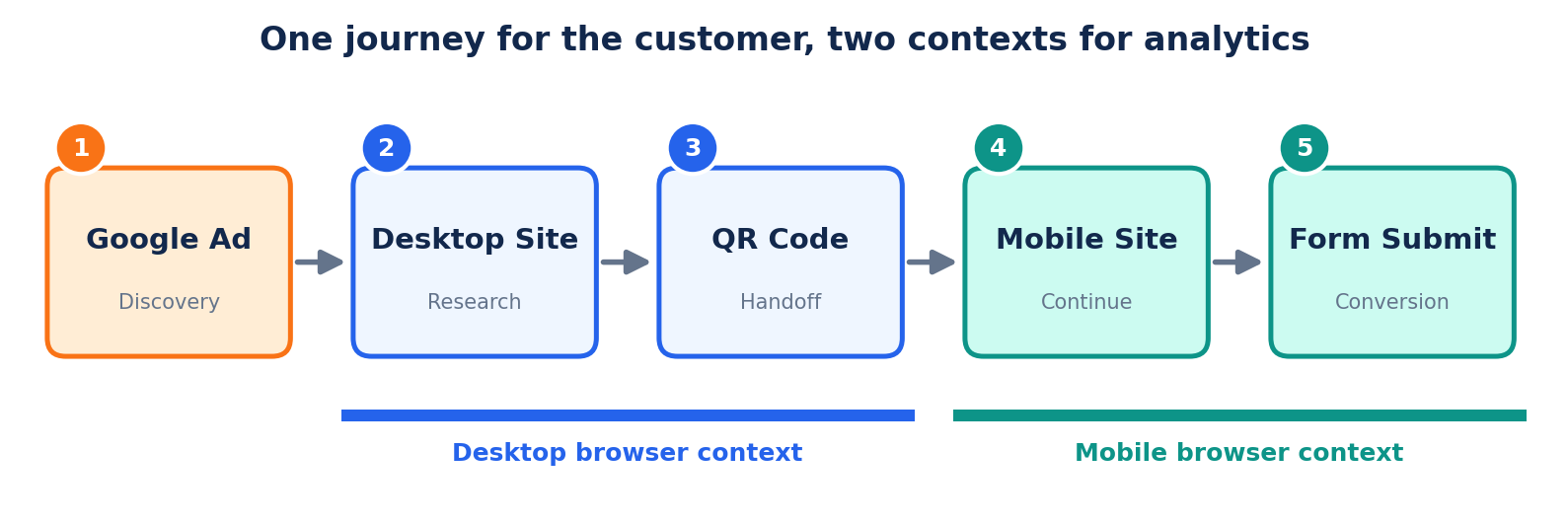
The moment the visitor reaches for their phone, a new browser environment begins. Unless you plan for it, GA4 has no built-in reason to link the phone visit to the desktop one.
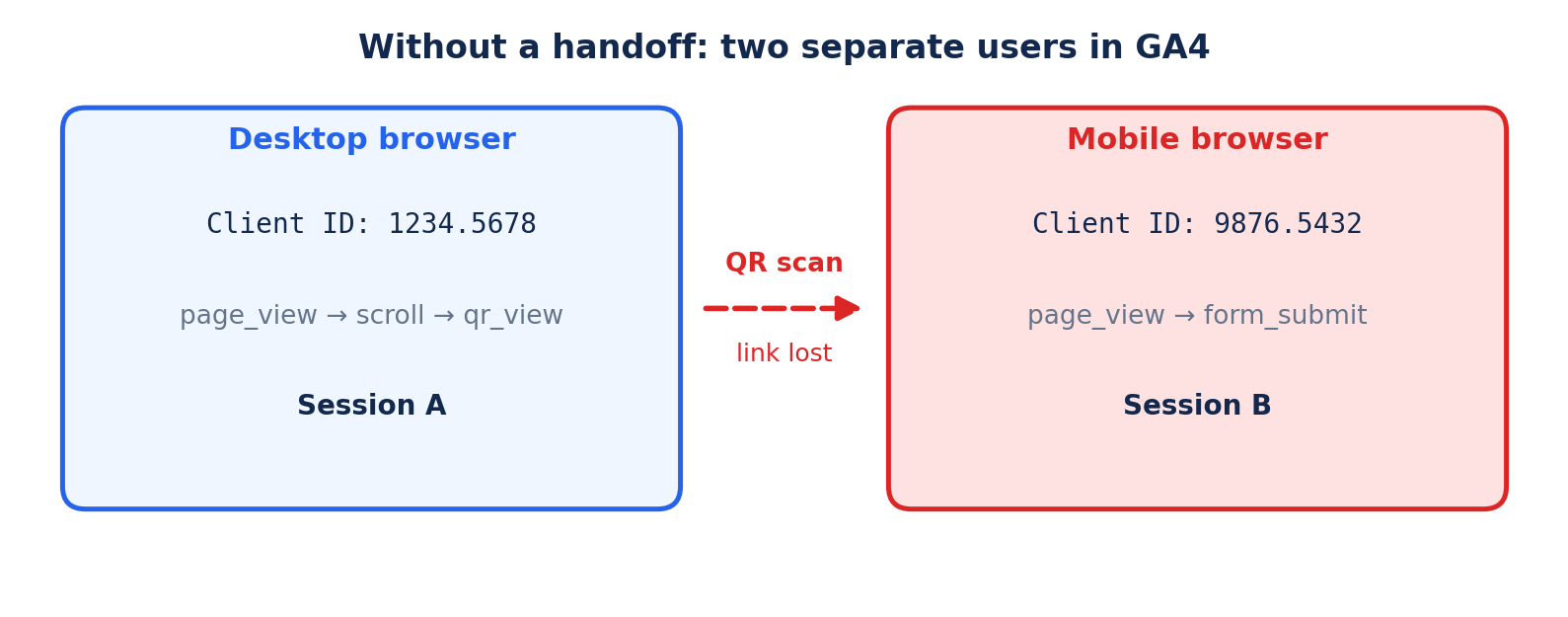
That gap leaves several important questions unanswered:
What did the visitor do on the desktop before moving to the phone?
How did they behave once the QR code was scanned?
Did the phone visit help bring about the final conversion?
Which channel deserves credit for starting the whole journey?
What the GA4 Client ID Actually Is
GA4 assigns a Client ID to each browser instance so it can recognise repeat activity from that same browser. It is important to be clear about its limits: it identifies a browser or device, not a human being. Open the site on a different phone or laptop, and a different Client ID is generated.
That limitation is exactly why a planned handoff is useful. Instead of expecting the Client ID to follow a person around, you treat it as a reference value that you consciously move from one device to the next inside a journey you have designed.
Where the QR Code Fits In
A standard QR code simply encodes a web address, for example:
https://example.com/experience
Scanning it opens that page on the phone, but nothing about the desktop visit travels along with it. To carry context across, the address needs to include extra information, such as:
https://example.com/experience?cid=1234.5678
When the phone loads the page, a script can read the cid value and attach it to the GA4 events it sends, for example, as a custom parameter. Your reports can then match mobile events to the desktop session that produced the QR code.
The Handoff at a Glance
Desktop Visit → Read Client ID → Build QR URL → Scan on Phone → Read Parameter → Send with GA4 Events

A caution is worth stating plainly: appending the ID to a link does not fuse the two devices into a single GA4 user. What you gain is a shared reference point that lets you connect the two sets of events during analysis.
How the Handoff Works Technically
The idea is simple, but each step has details that decide whether the data is usable. Here is the full chain from the desktop page to the report.
Step 1: Read the Client ID on the desktop
GA4 keeps the Client ID in a first-party cookie called _ga. Its value looks like GA1.1.1234567890.1712345678, and the Client ID is the last two number groups joined by a dot. You can ask GA4 for it directly with gtag, which is more dependable than parsing the cookie:
gtag('get', 'G-XXXXXXXXXX', 'client_id', function (clientId) {
// clientId example: 1234567890.1712345678
buildQrCode(clientId);
});
In Google Tag Manager, the same value can be read with a custom JavaScript variable or a first-party cookie variable that targets _ga. Either way, run this only after the GA4 tag has loaded; otherwise, the ID may not exist yet on a first visit.
Step 2: Put the ID into the QR URL
Add the ID as a query parameter and encode it so it survives the trip:
const url = 'https://example.com/experience?cid=' + encodeURIComponent(clientId);
A QR library then turns this string into the image. Note that every visitor needs their own code, because each Client ID is different. This approach therefore suits a QR code generated live on the screen, not a single printed poster that everyone scans.
Step 3: Capture the value on mobile and keep it
The phone opens the page, and the parameter is present only in that first URL. If the visitor moves to another page before submitting the form, the value would be lost. To prevent that, read the parameter once and store it for the session:
const cid = new URLSearchParams(location.search).get('cid');
if (cid) { sessionStorage.setItem('desktop_cid', cid); }
In GTM, a URL Variable (query type, key cid) can read the parameter, and a small script or variable can read the stored copy on later pages.
Step 4: Send it to GA4 and register it
Attach the stored value to your mobile events as an event parameter, for example desktop_cid, on page_view and on the conversion event such as form_submit. Then open GA4 Admin and register desktop_cid as an event-scoped custom dimension. Without this registration, the parameter is collected but cannot be used in standard reports, and it is not applied to data that was collected earlier.
Step 5: Connect the two sides in analysis
Inside the GA4 interface, the phone and the laptop will still be two different users, because the mobile event simply carries a reference to the desktop ID. The real join happens in analysis. If you export GA4 to BigQuery, the user_pseudo_id field is the Client ID, so you can match mobile events to desktop events like this:
WITH mobile AS (
SELECT user_pseudo_id AS mobile_cid, event_name,
(SELECT valuestring_value FROM UNNEST(event_params)
WHERE key = 'desktop_cid') AS desktop_cid
FROM project.analytics_XXXXXX.events_*
WHERE TABLESUFFIX BETWEEN '20261001' AND '20261013'
)
SELECT d.event_name AS desktop_event, m.event_name AS mobile_event
FROM mobile m
JOIN project.analytics_XXXXXX.events_* d
ON d.user_pseudo_id = m.desktop_cid
WHERE m.desktop_cid IS NOT NULL;
For lighter analysis, you can also build an Exploration on the custom dimension, although a field with so many unique values may be grouped under (other) in standard reports, which is another reason BigQuery is the cleaner route.
A safer variation: pass a short-lived token
Putting the raw Client ID in a URL means it can end up in server logs, browser history, and referrer data. A tidier option is to generate a random token on the desktop, store the pairing token → Client ID on your server with a short expiry, and place only the token in the QR URL. The mobile page sends the token, and the join to the real Client ID is resolved on your side. This keeps the identifier out of the link and limits how long the link is useful.
Limits to keep in mind
No automatic merge. GA4 does not merge the two devices into one user. You are creating a reference, not a merge.
Partial coverage. The link only exists for people who scan the QR code. Everyone else stays as separate device-level users.
Consent. The Client ID is a pseudonymous identifier, so respect Consent Mode and your privacy policy before collecting or passing it.
Cookie changes. Clearing cookies, switching browsers, or using private mode creates a new Client ID, which breaks the chain.
Worked Example
Consider a shopper comparing products on their laptop:
They open the site and browse several product pages.
They land on a page showing a QR code and scan it.
The product page opens on their phone.
They fill in an enquiry form and submit it.
With no handoff in place, the laptop browsing and the phone submission are logged as separate, unconnected visits. With the handoff, you can trace the whole path: the pages viewed on desktop, the QR interaction, the mobile page experience, and the final form submission.
Client ID Compared with User ID
These two identifiers are easy to mix up, but they serve different purposes.
Aspect | Client ID | User ID |
What it represents | A single browser or app instance on one device | A person you already recognise, such as a logged-in customer |
Who creates it | GA4's tracking code, automatically | Your own system, typically after login |
Behaviour across devices | Differs on every browser and device | Stays the same wherever the person signs in |
Available on this site? | Yes, created automatically for every visitor | No, because the site has no login feature |
Requirements | None beyond standard GA4 tagging | A sign-in mechanism plus proper consent and privacy controls |
If your visitors log in, User ID is normally the stronger choice because it follows the person reliably across devices. In this scenario, however, that route is closed: there is no login, so there is no User ID to send. GA4 also has other ways of linking devices, such as Google signals, but these depend on visitors being signed in to a Google account with ad personalisation turned on, so they cannot be relied on for anonymous visitors.
That leaves the Client ID handoff as the workable option. It suits anonymous, short-lived journeys like a QR scan from a desktop page, where no sign-in ever takes place. If a login feature is added to the site in the future, switching to User ID would be the better long-term solution.
What You Can Learn from It
Once the two halves of a journey can be examined together, QR code reporting becomes far more useful than a raw scan count. You can start answering questions like:
Which desktop pages tend to lead people to scan the code?
What do people do on mobile right after scanning?
At what point in the journey do users decide to switch devices?
Which touchpoints help drive conversions?
Which campaigns or channels began the journeys that ended in a conversion?
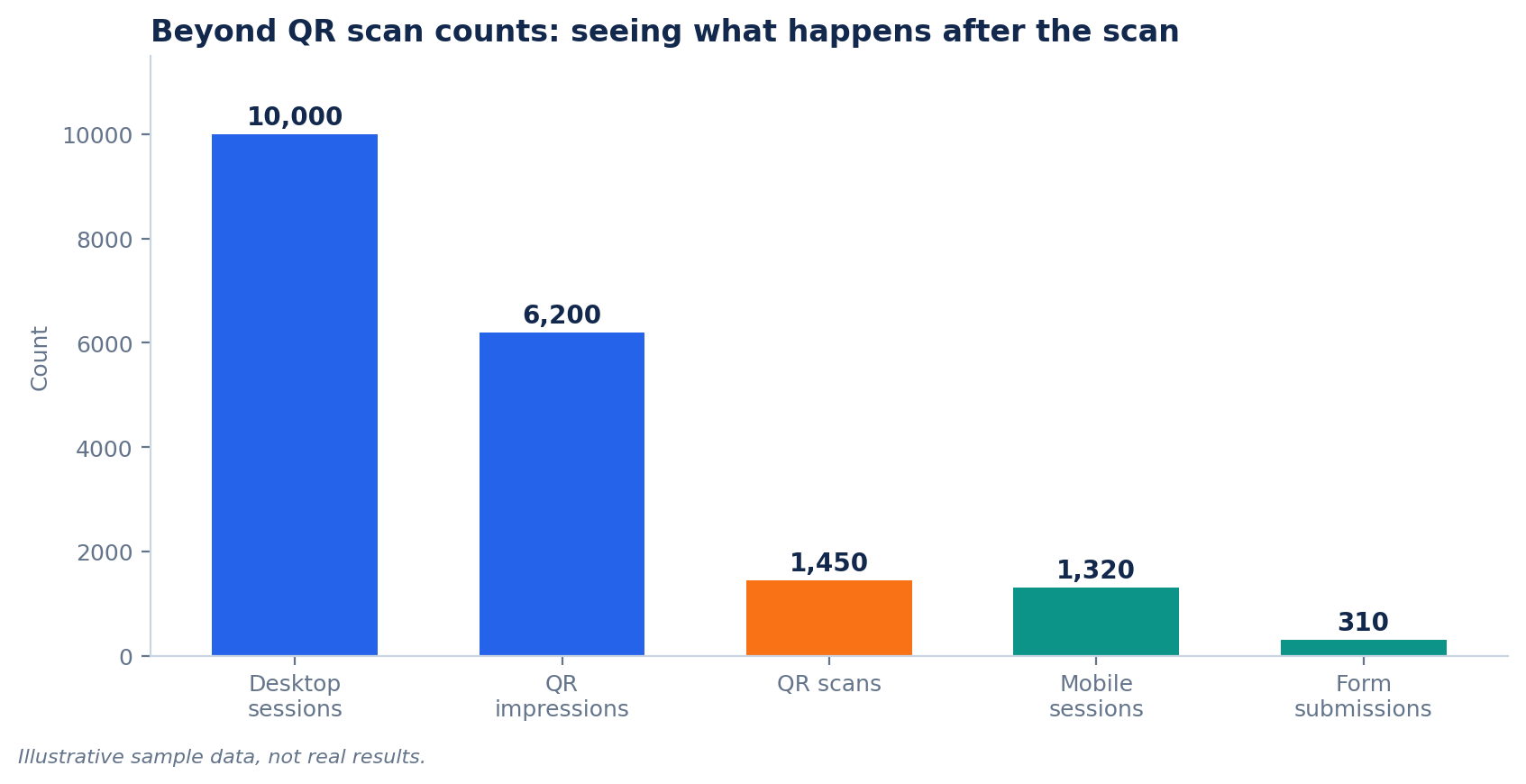
The real value lies in understanding how interactions relate to one another, instead of judging each session on its own.
Practical Points to Get Right
Adding an ID to a link is only the starting point. A dependable setup needs attention to the following:
Handling the identifier. Make sure the value is captured, encoded, transmitted and read back without being altered.
URL parameters. Check that the parameter is not stripped out by redirects or link shorteners along the way.
Browser restrictions. Browsers apply privacy rules that can limit cookies and storage, so test how your setup behaves in each.
Privacy and consent. Keep names, emails, and any other personal data out of URLs, and respect the visitor's consent choices.
Attribution. Treat journey continuity and ad-platform attribution as separate checks, since one does not confirm the other.
Testing. Walk through the full path on real devices and several browsers before going live.
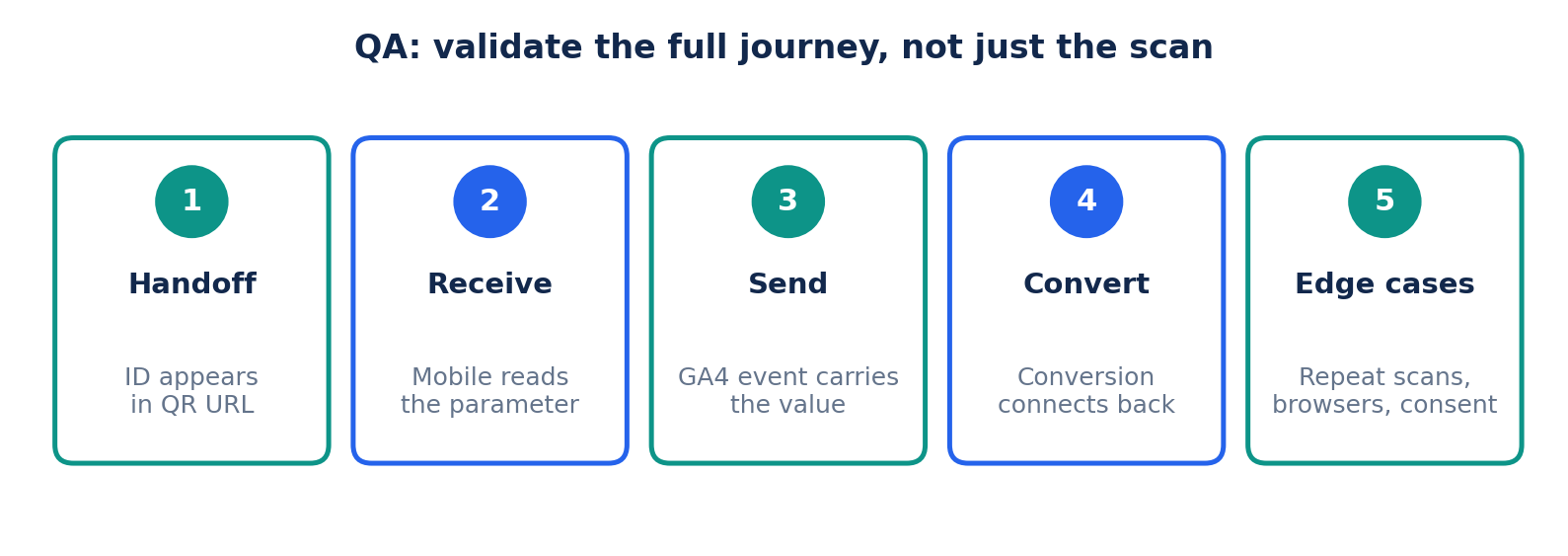
Google Tag Manager is a handy tool here. It can read URL parameters, store them in variables, fire events, and offer a preview mode for debugging the whole flow.
Final Thoughts
Moving between devices is now routine. A person may first meet your brand on one screen and complete the purchase on another, while your analytics records the two visits separately.
A Client ID passed through a QR code is one practical way to bridge that gap in a controlled, purposeful scenario.
The takeaway: don't try to squeeze every interaction into one identity. Aim instead for sensible, privacy-respecting links between the interactions that truly belong together.
With a thoughtfully planned measurement approach, GA4 can show you far more clearly how customers travel across devices, channels, and touchpoints.
Similar Posts

