In short
User ID in GA4 links a logged-in user's sessions across devices to one identifier you supply. Send a non-PII internal ID as user_id with gtag.js or Tag Manager at login, set it to null at logout, and use the Blended or Observed reporting identity. Never send emails, names or phone numbers as the ID.
Contents5 sections
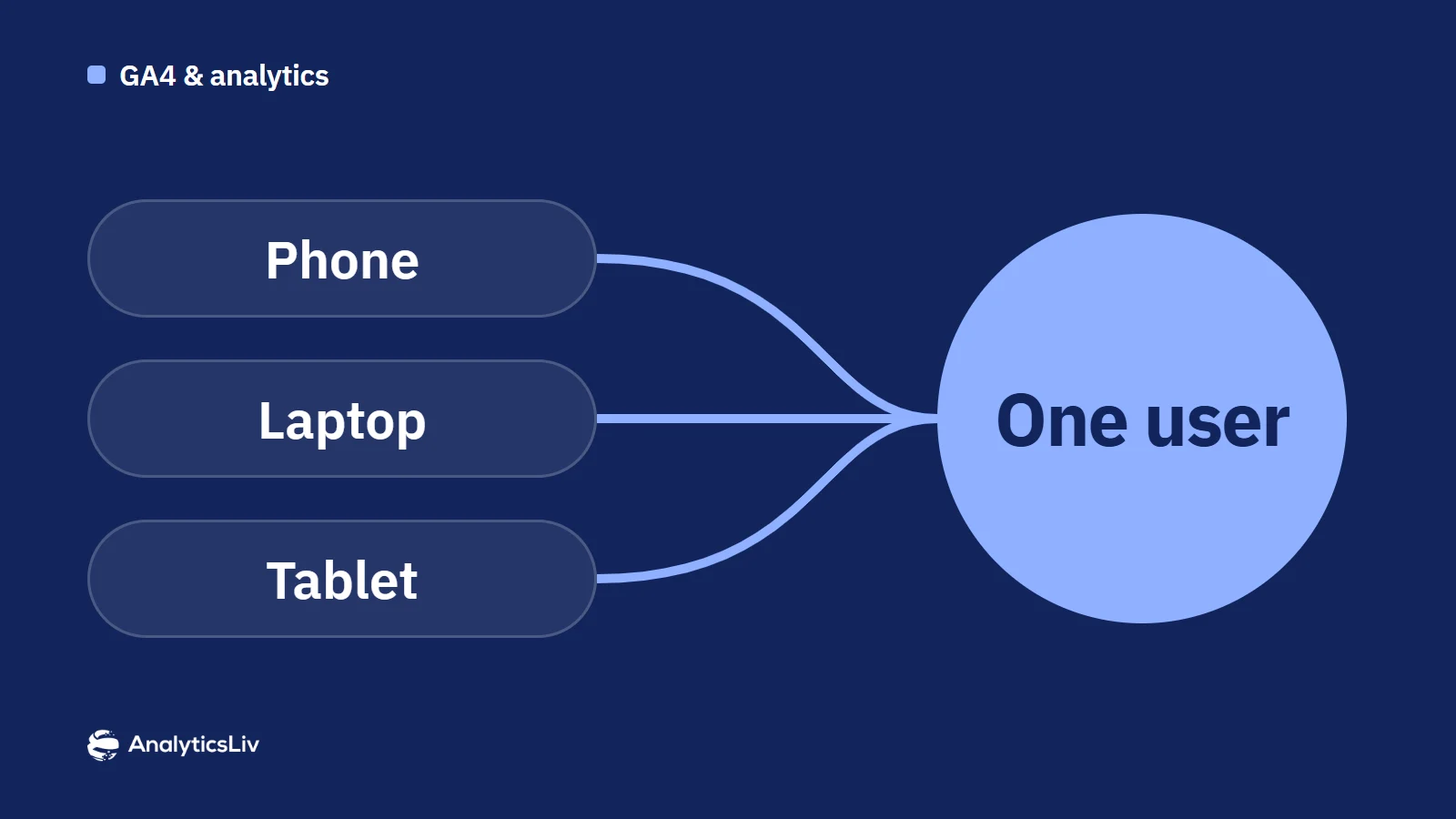
Users often visit your website or app on more than one device. GA4's User ID feature lets you link those visits to one person, so you can understand the full user journey. This guide explains what User ID does, how to send it with gtag.js or Google Tag Manager and the privacy rules to follow.
What is User ID in GA4?
User ID is a GA4 feature that associates a user's interactions across devices and sessions with one identifier that you supply, usually your own internal account ID, sent when the user logs in. It is especially useful when people use your website or app on several devices or platforms.
What are the benefits of User ID?
- Cross-device tracking: when a user starts on a phone and continues on a desktop, User ID links both journeys to the same user.
- Better user insights: combining sessions and devices gives a user-level view, so analysis and audiences are more accurate.
- More accurate attribution: key events can be attributed to a known user rather than to separate devices, which gives a clearer picture of the touchpoints that lead to them.
- Better user experience: with a more accurate view of user behavior, you can tailor content and marketing to what users actually do.
How do you set up User ID in GA4?
1. Check your reporting identity
There is no User ID switch to turn on. You send the IDs yourself, and GA4 uses them when your reporting identity includes User-ID:
- In Admin, under Data display, click Reporting identity.
- Select either Blended (user ID, then device ID, then modeling) or Observed (user ID, then device ID).
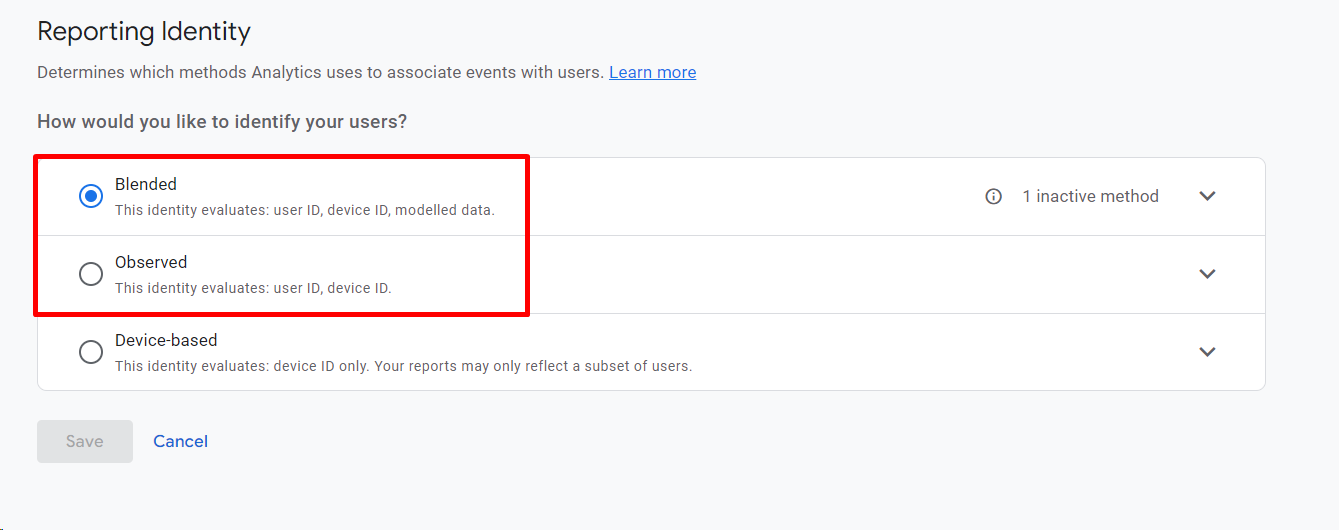
For more on how the three options count users, see our guide to reporting identity in GA4.
2. Send the user ID with your tags
Set the user_id field when a user logs in, using gtag.js or Google Tag Manager (or the Firebase SDK in apps).
Example (gtag.js):
gtag('config', 'G-XXXXXXXXXX', {
  'user_id': 'USER_ID'
});
Example (GTM): push the user ID to the data layer, read it with a Data Layer Variable, and add a user_id parameter to your Google tag's configuration settings.
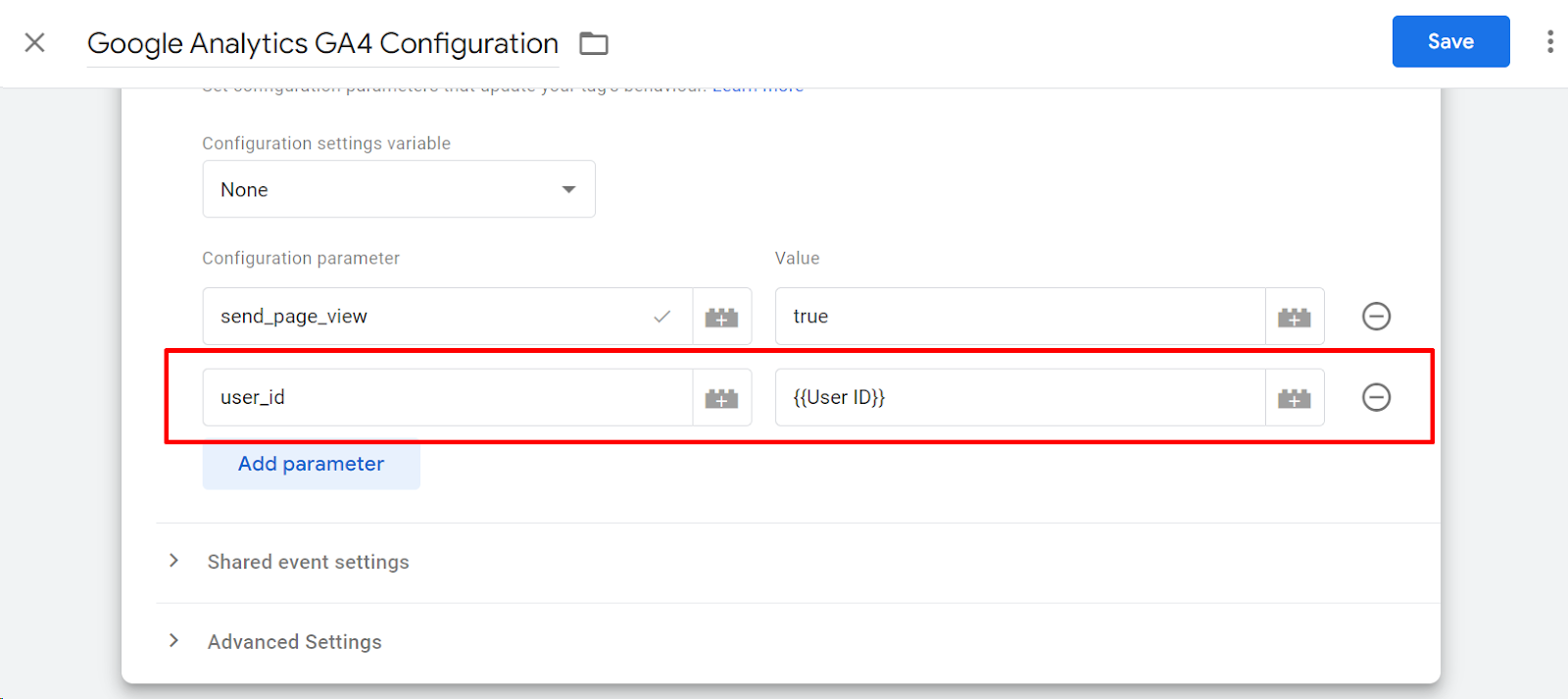
When the user logs out, set user_id to null. Don't send an empty string or the text "null".
3. Use a non-PII internal ID
Never send personally identifiable information (PII), such as an email address, phone number or name, as the user ID. Use a non-PII internal ID instead, such as your database's customer number. Google requires that the ID must not contain information a third party could use to identify the user, and that it is 256 characters or less.
4. Test and validate
Test the setup to make sure the user ID is sent correctly on login and cleared on logout. Use GA4 DebugView and the Realtime report to check.
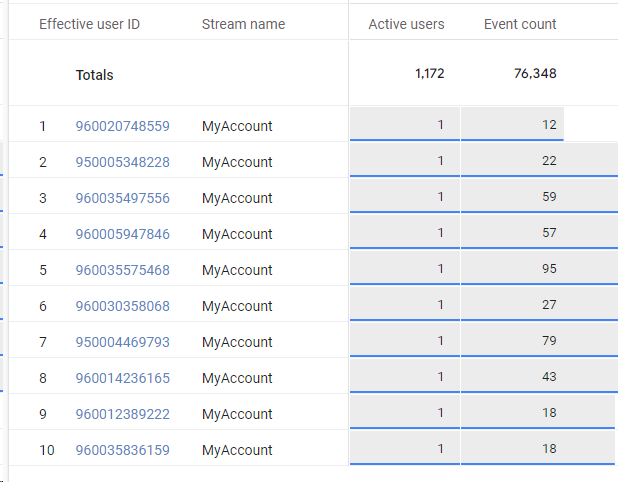
What are the best practices for User ID?
Respect privacy rules
- No PII: send only a non-PII internal ID, never an email, name or phone number.
- Notice and consent: explain your use of identifiers in your privacy policy and get user consent where required.
Keep the ID format consistent
Use the same ID format on every platform (website, app, CRM) so data matches and adds up correctly.
Encourage sign-in
User ID only works for logged-in users, so the more users sign in, the more complete your cross-device data.
Monitor and audit
- Regular audits: check that the implementation stays accurate as your site, app and business needs change.
- Data retention: set data retention policies so user-level data is stored responsibly. Note that if GA4 is linked to BigQuery, user IDs are exported regardless of consent status.
Summary
User ID gives you a user-level view of behavior across devices and sessions, which improves analysis, attribution and personalisation. Send a non-PII internal ID at login, clear it at logout, use a reporting identity that includes User-ID and test the setup before relying on the data.